
Mobile app
Hoofbook on the go: how to install the app on iPhone and Android
In short
Hoofbook is designed first for the computer, but the essentials fit in your pocket too: your next visits, the next address, a visit to tick off or move. No App Store or Google Play needed. On iPhone, open go.hoofbook.app in Safari, tap Share, then Add to Home Screen. On Android, open it in Chrome, then the menu, Add to home screen and Install app. A few taps, and the Hoofbook icon joins your other apps. The mobile version complements the desktop one and keeps evolving.
Hoofbook is designed first for the computer. That’s where you plan your week: grouping stables, choosing the route, moving a visit, calmly, on a big screen.
But on the road, it’s a different story. Between two stables you need a few things at hand: your next visits, the address of the next one, a visit to tick off or move when a client cancels.
That’s what Hoofbook on the go is for: the essentials, in your pocket. And the good news: there’s no need to go through the App Store or Google Play. It installs straight from your phone’s screen, in a few taps. Here’s how, on iPhone and on Android.
Before you start
Four things to have at hand:
- Your phone. You install it from the phone, not from the computer.
- Your Hoofbook account. You’ll use it to log in once the installation is done.
- The right app for browsing the web. Safari on iPhone, Chrome on Android.
- The site address. go.hoofbook.app is all you’ll need to type.
Install Hoofbook on iPhone
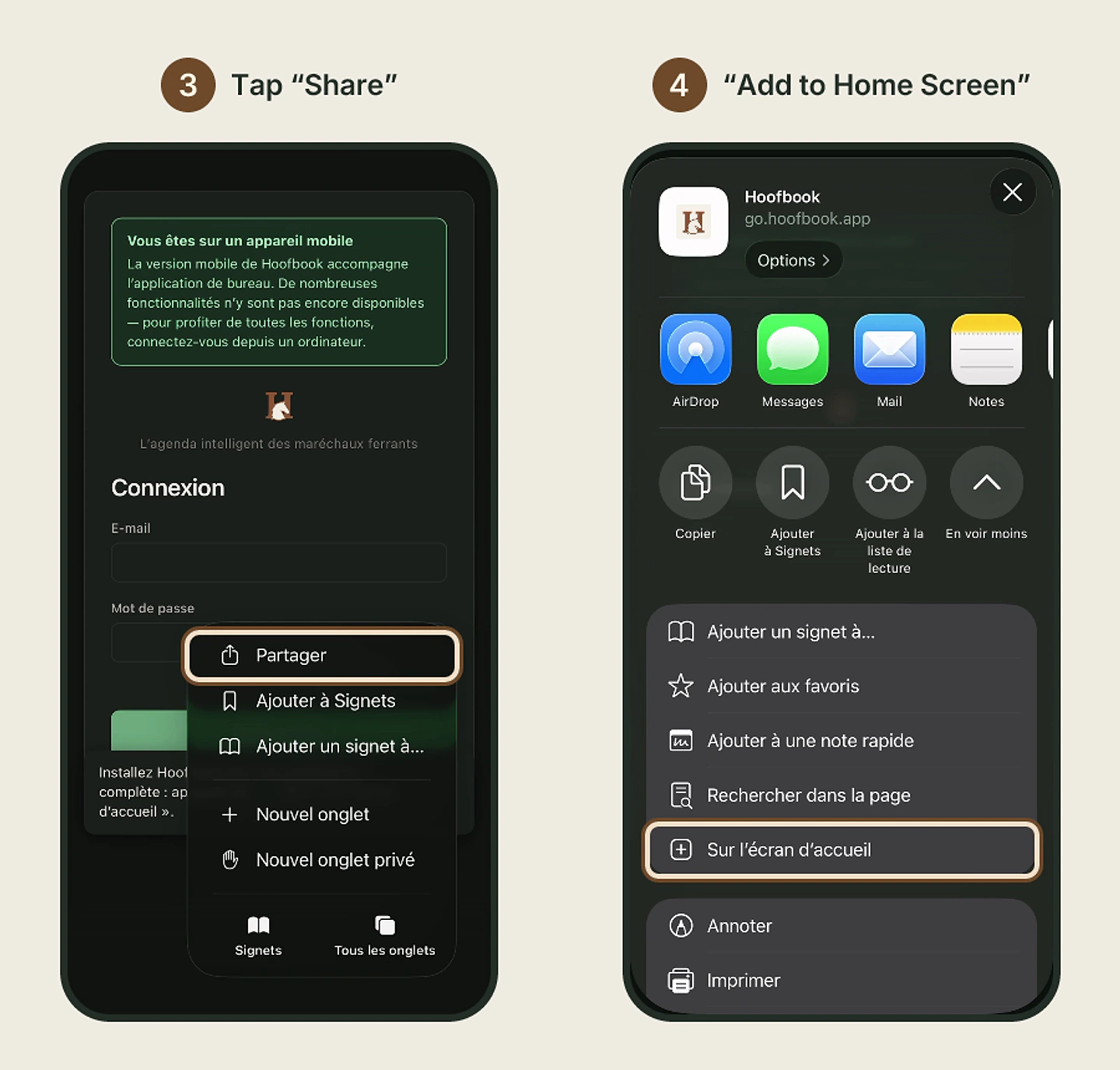
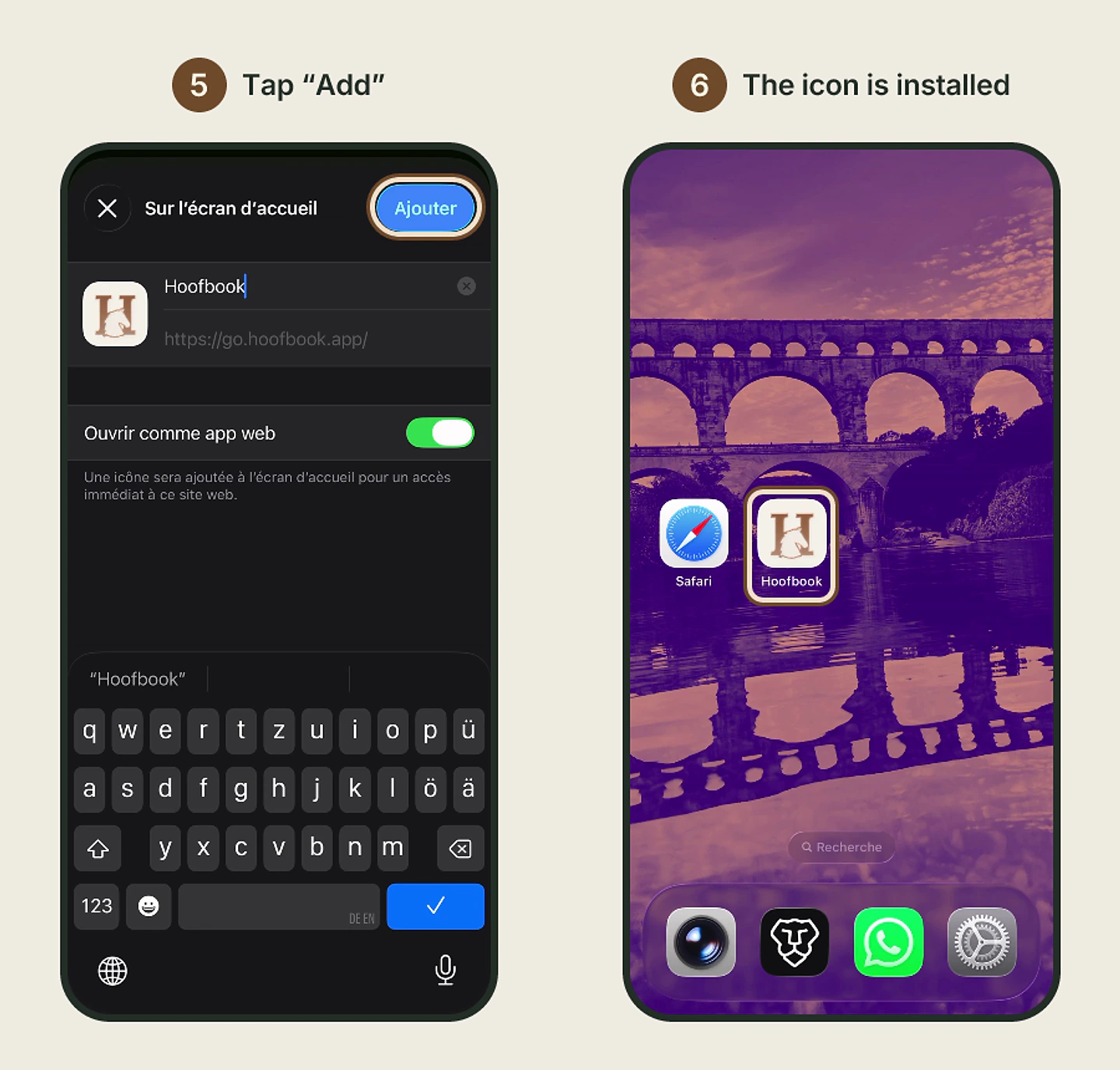
The images show each step on an iPhone, with what to tap circled. One thing to know: the iPhone in the pictures is set to French, so the labels on screen are in French. On your phone they’ll be in your language. Look for Share, Add to Home Screen and Add.
- Open Safari and type go.hoofbook.app.
- The Hoofbook login page appears. If a window asks about cookies, make your choice. Then tap the three dots at the bottom right of the screen. The page also reminds you of the steps itself, at the bottom of the screen.
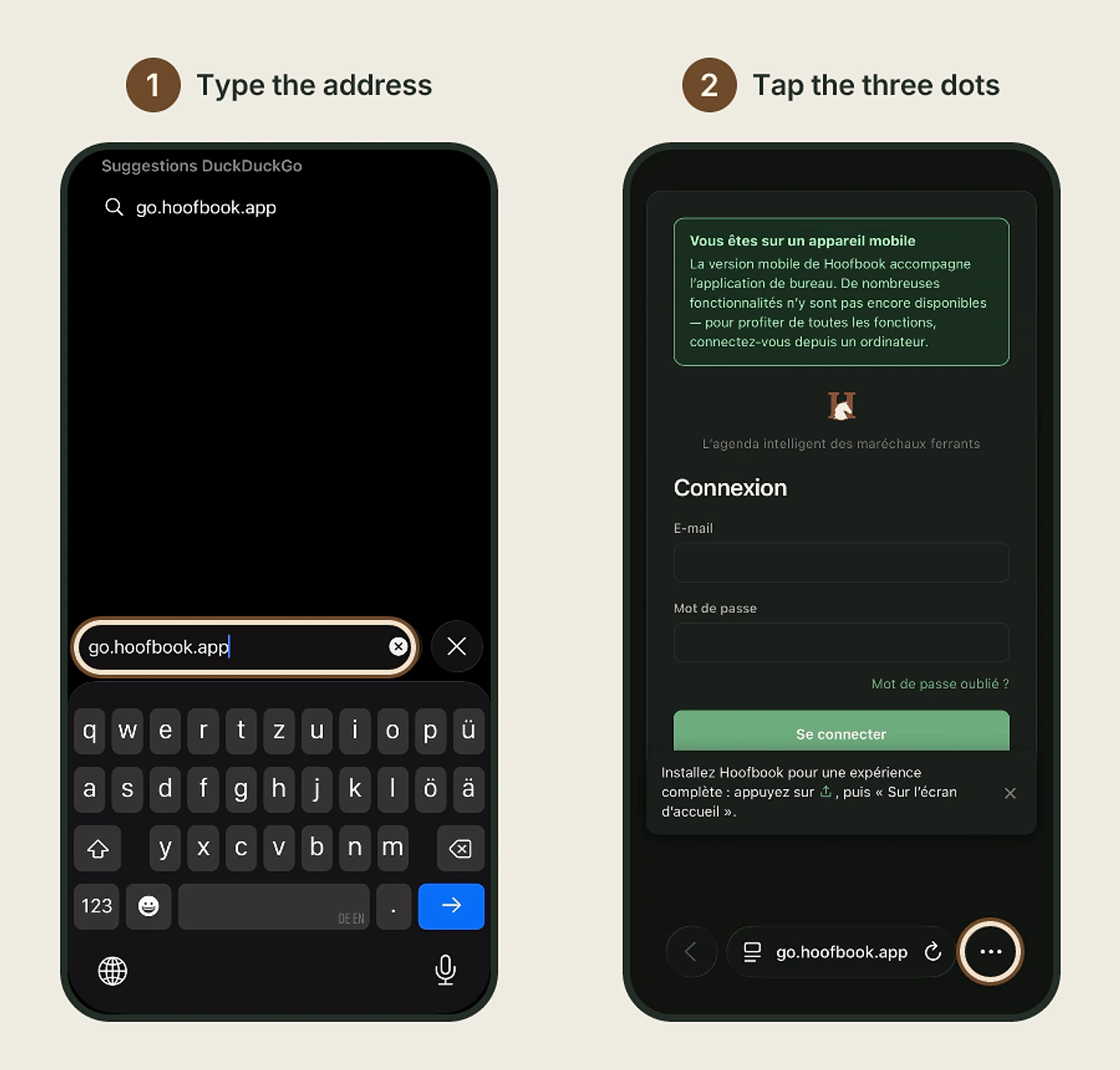
- In the menu that opens, tap Share.
- Scroll down the list to Add to Home Screen, then tap it.
- Keep the name “Hoofbook” and leave Open as Web App switched on: Hoofbook will open full screen, like a real app. Tap Add, at the top right.
- Done: the Hoofbook icon is on your home screen. Tap it, log in with your account, and you’re ready.
On an older iPhone, the screens can differ a little: the Share button is then a square with an arrow pointing up, in the middle of the bottom bar.
Install Hoofbook on Android
On Android, Chrome does the job. Button names can vary a little depending on your phone’s brand (Samsung, Google Pixel, Xiaomi…), but the steps are the same.
- Open Chrome and type go.hoofbook.app.
- Tap the three dots at the top right to open the menu.
- Tap Add to home screen. On some phones you’ll see Install app straight away.
- Choose Install app, then confirm with Install. Avoid “Create shortcut”: it would only put a link to the site on your screen, which opens inside Chrome with its address bar.
- The Hoofbook icon appears on your home screen. If you can’t see it, look in your list of apps: press and hold it to drop it wherever you like.
- Tap the icon and log in with your account. You’re ready.
Something not working?
- On iPhone, “Add to Home Screen” isn’t there. Check that you’re in Safari. Then scroll all the way down the list, tap Edit Actions and add “Add to Home Screen”.
- On Android, “Install app” isn’t there. Check that you’re in Chrome. If the menu only offers Add to home screen, tap it: the installation is offered next.
- You can’t find the icon. Swipe through the pages of your home screen: it goes wherever there’s room. On Android, also look in your list of apps.
Still stuck? We’re happy to help. Send us an email at contact@hoofbook.app and we’ll get back to you in record time.
On the road: what you can do with Hoofbook
Once installed, Hoofbook opens in one tap, like any other app. From your phone, you can:
- see your next visits and the day’s round;
- tick off a visit once it’s done, or move one when a client cancels;
- pull up the address of your next visit and the route to get there.
All from your pocket, between two stables.
Your computer is still your desk
The mobile version complements the desktop one, it doesn’t replace it. To get all the features of Hoofbook, log in from a computer: the login page on your phone says so too. That’s where you plan your rounds. For the method, read our guide to planning your rounds to drive less.
And this is only the start
We’re continuing to develop the mobile version, and many more features will be added. What you install today is the starting point.
No account yet? Try Hoofbook for free, no credit card required, then install it on your phone in a few taps.
Key takeaways
- Hoofbook is planned on the computer first; the phone is for the road: your next visits, the next address, a visit to tick off or move.
- No trip through the App Store or Google Play: you install Hoofbook straight from your phone's screen, in a few taps.
- On iPhone: Safari, then Share, then Add to Home Screen. On Android: Chrome, then the menu, then Install app.
- The mobile version complements the desktop one and keeps evolving: more features will be added.
Frequently asked questions
- Do I need the App Store or Google Play to install Hoofbook?
- No. Hoofbook installs straight from your phone, in a few taps: with Safari on iPhone, with Chrome on Android. There's nothing to search for or download in an app store.
- Is the mobile app an extra cost on top of the subscription?
- No. Hoofbook has one plan with everything included: using it on your phone is part of it, both in the subscription and during the free trial.
- What can I do with Hoofbook on my phone?
- See your next visits and the day's round, tick off a visit or move one, and pull up the address of your next visit and the route there. To get all the features, use Hoofbook from a computer. The mobile version keeps evolving: more features will be added.
- Do I need a separate account for the app?
- No. You log in with your usual Hoofbook account, the same one you use on the computer.
- Can I use Hoofbook on my phone without installing it?
- The login page opens in Safari or Chrome, but Hoofbook itself recommends installing it for the full experience. Installing takes a few taps, and the icon then sits with your other apps.